
Features
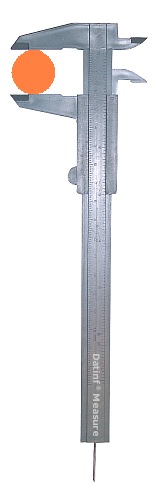
All measurements are performed using the integrated measurement tools, which can be selected by clicking them in the toolbar. To create multiple measurements, hold down the Ctrl key when selecting a tool. Some tools provide additional functions when you hold down the Shift key while using them.
Measurement tools
- Line (length, coordinates)
- Ellipse (semi-axes, perimeter, area, center)
- Circle (radius, perimeter, area, center)
- Rectangle (side lengths, perimeter, area)
- Square (side length, perimeter, area)
- Curves (length of a Bézier curve)
- Polygon (perimeter, area, vertices, coordinates)
- Magic wand (area, vertices, coordinates)
Scale
- Graphical determination of the scale using image elements of known size
- Numeric definition of the scale when the imaging scale is known
- Supported units: pixel, nm, µm, mm, cm, in, km
- Freely usable zoom
Output options
- Save a measurement file for later editing
- Export measurement values in Excel or ASCII format
- Save the original image with the measurement objects drawn in
- Copy results to the clipboard (RTF format)
Integration
- INI file with various parameters for image and data transfer to integrate routine measurements
Example
- Prepare Ini file, e.g. d:\data\mconfig.ini
		[Control]

		ImageFile=d:\data\img3456.jpg

		DIMFile=d:\data\img3456.dim

		SavePath=d:\results

		OutputImageFilenameFormat=measure_yyyymmdd_hhMMss_nnn.jpg

		OutputDataFilenameFormat=measure_yyyymmdd_hhMMss_nnn.csv

		ShowSaveButton=1

		Maximized=0
- Program call: measure.exe "d:\data\mconfig.ini"
Technical information
- Runs on Windows 10 and Windows 11
- Measure is a 64-bit application and does not run on older 32-bit versions of Windows
- A 32-bit version is available on request
- Required screen resolution: 1024 × 768 pixels or higher
- Maximum image size: 8000 × 8000 pixels